How to import a PDF purchase order into Tally as a sales order
TallyPrime can't read a customer's PDF purchase order on its own unless you use Docs by Ira on 7.1. With OrderDak, you upload the PDF, check the lines it flags, approve, and import the Tally XML it gives you through Import, then Transactions.
A customer's purchase order is their document, in their layout, with their item names. A Tally Sales Order is your document, with your stock items, your ledgers and your GST split. Getting from one to the other is the job your order desk does by hand.
Tally imports vouchers from XML, but every party, stock item, unit and ledger in the file must already exist with exactly the same name. That is why a PDF can't simply be converted: each line has to be matched to your item list first.
OrderDak reads the PDF, matches each line and the buyer, checks rate, stock, credit, pack size, the GSTIN and duplicate PO numbers, then builds the XML with your ledgers. Digital PDFs are read as text; scanned PDFs and photos are read with OCR and every line is marked for you to check.
The Sales Order it creates carries the party ledger, your sales and GST ledgers, quantities with units, the buyer's PO number and the due date. CGST + SGST or IGST is chosen from the place of supply, so you don't pick tax ledgers by hand.
Steps in OrderDak
Set up Tally
Use TallyPrime 3.0 or later. Press F11 and turn on order processing so the Sales Order voucher type exists.
Enter your Tally names in OrderDak
In setup, enter your company name, sales ledger, CGST, SGST and IGST ledgers and godown exactly as they appear in Tally. Upload your stock items and customers as CSV.
Upload the PDF
Drop the PDF under “Add orders”, or forward the email it came with to your OrderDak address.
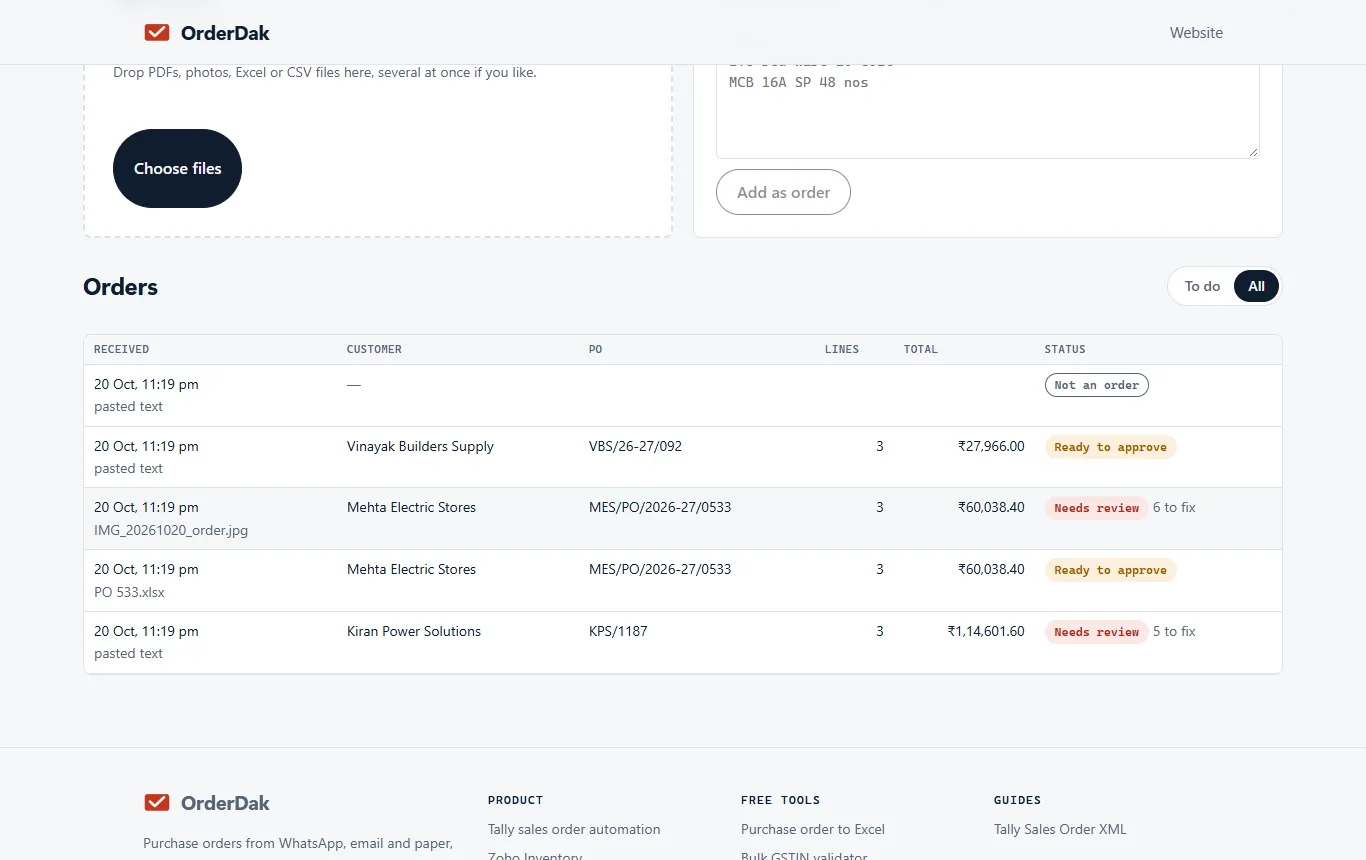
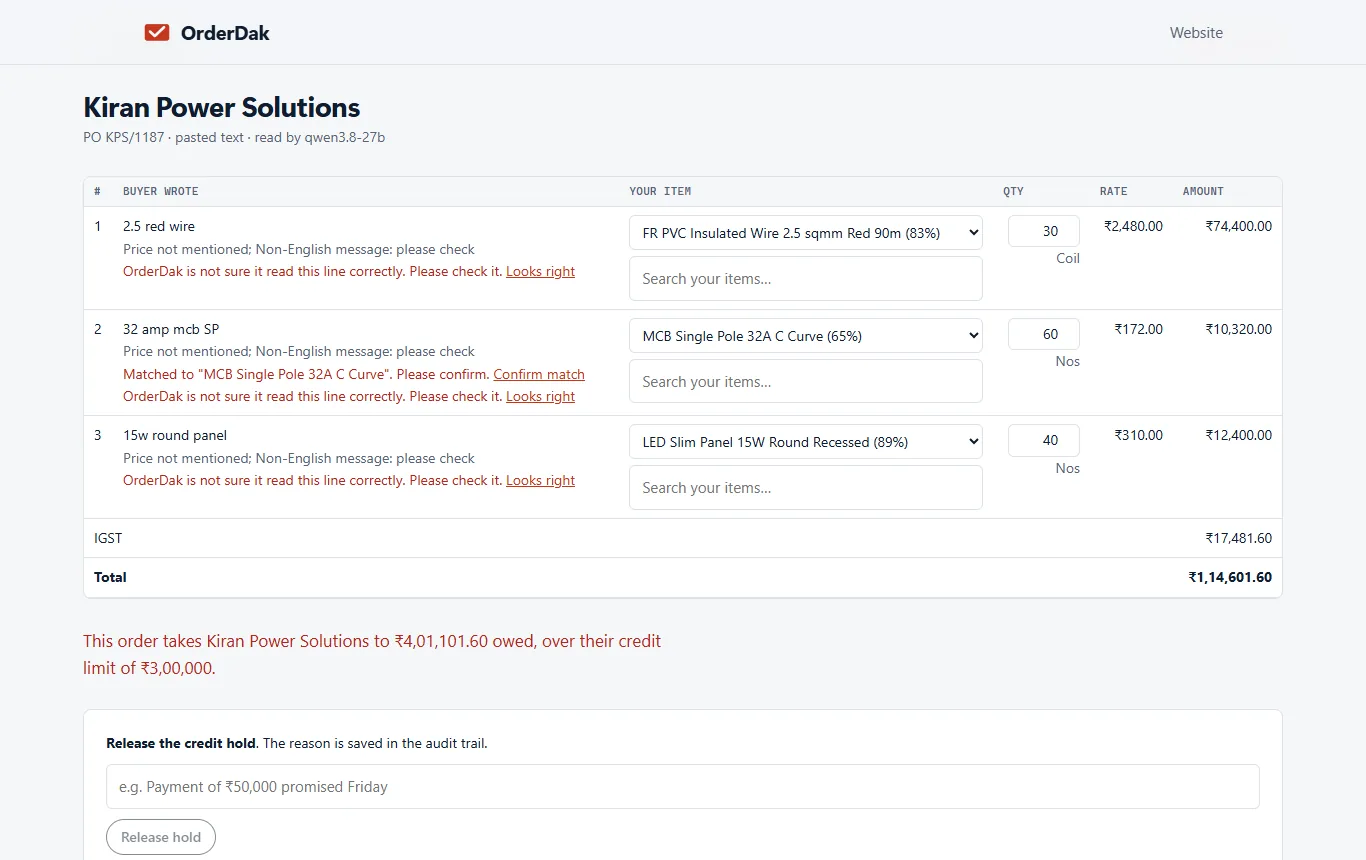
Review and approve
Check flagged lines, confirm matches, then click “Approve for Tally”.
Download the Tally XML
On the approved order, click “Download Tally XML”.
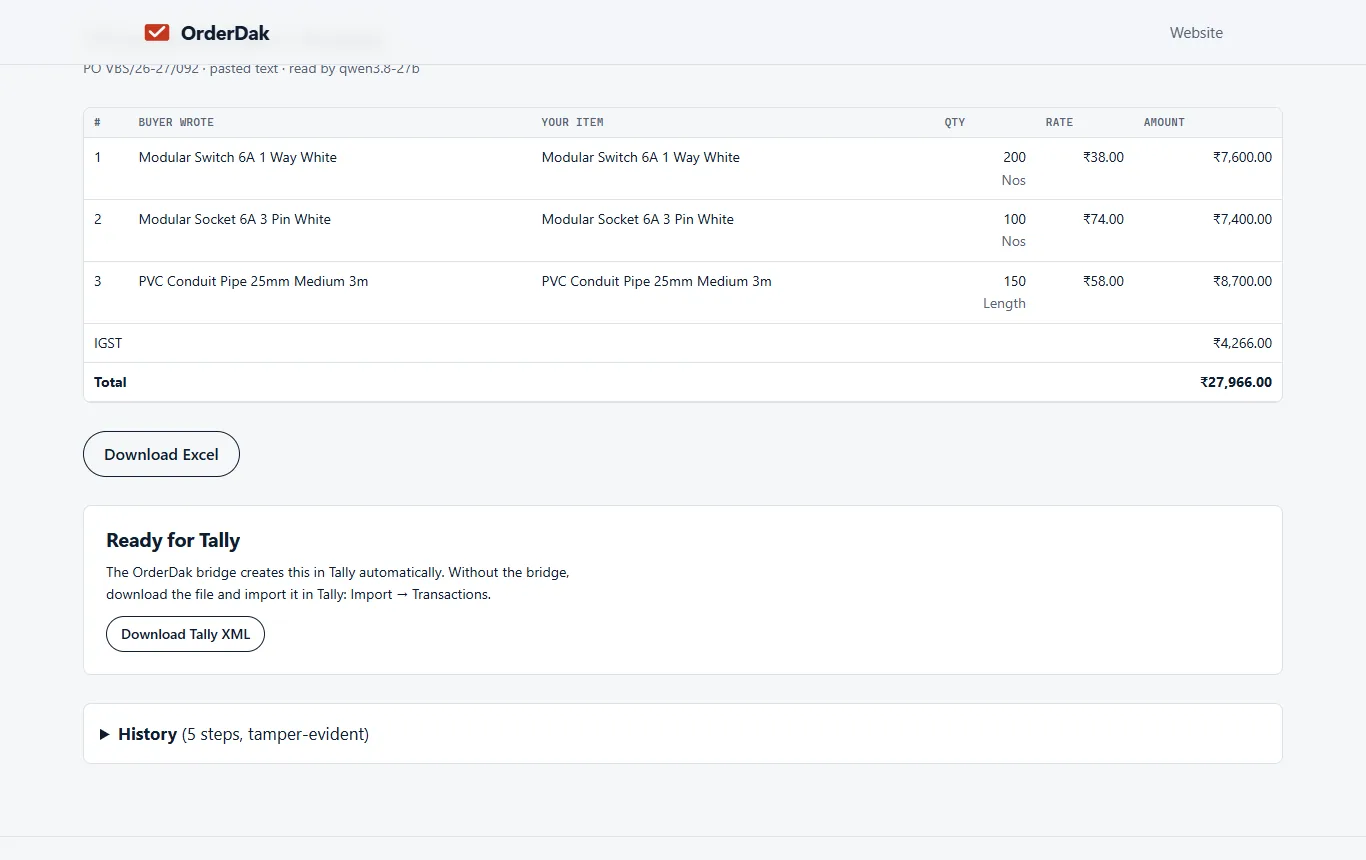
Import in TallyPrime
Open the company in TallyPrime. Go to Import, then Transactions, and choose the file. Tally reports how many vouchers it created and lists any errors.
When OrderDak is not the right tool
If all your POs are clean digital PDFs, one per file, and you are on TallyPrime 7.1 with an active TSS, Tally's own Docs by Ira may do the job. If the PDF is handwritten, OrderDak can't read it yet. If you only want the PO lines in a spreadsheet, the free PO PDF to Excel tool on our site is enough.
Questions
Tally says a stock item does not exist. Why?
The name in the file differs from Tally's by a space, a case or a dot. Make sure your item list in OrderDak came from Tally, and check the ledger names in setup.
Can it read scanned PDFs?
Yes, if the text is printed. Orders read from scans ask you to check every line.
Do I have to import by hand every time?
No. The OrderDak bridge (beta) on your Tally PC can create the Sales Order for you once Tally is open.
Related: How to import Excel orders into Tally as sales orders · Dealer purchase orders for manufacturers, entered once · OrderDak vs Docs by Ira · Pricing
Last updated 1 November 2026 · by Venu Gopal Reddy Muvva, founder