How to import Excel orders into Tally as sales orders
If your sheet already has one row per line with Party, Item Name, Qty, Unit and Rate, the free Excel to Tally XML tool on our site makes an import file. If customers send Excel in their own layouts, upload the sheet to OrderDak, which reads it, matches each line to your items, checks it and gives you the Tally XML.
Tally imports Excel only in its own templates, and your customers never use them. Their sheets have their own columns, merged headers, totals rows and their item codes. Copying them into Tally line by line takes as long as typing a WhatsApp order.
There are two routes. The free converter is for sheets you make yourself in a simple layout. OrderDak is for sheets your customers send, in any layout, where each line still has to be matched to your stock items and checked.
Either way the result is the same kind of XML that TallyPrime imports as Sales Order vouchers, with GST split into CGST and SGST or IGST. Old .xls files need to be saved as .xlsx or CSV first.
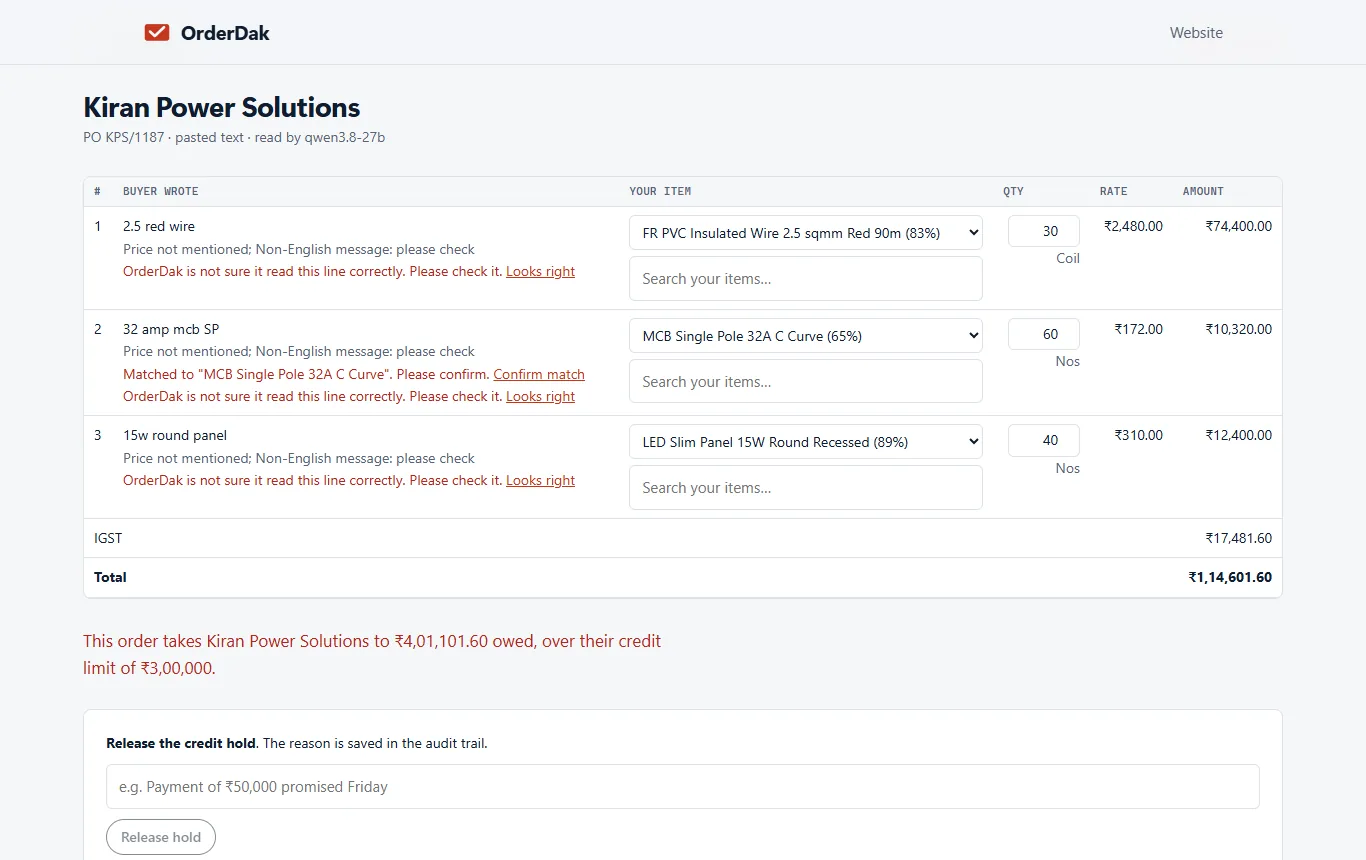
When OrderDak reads a customer's sheet, it also checks each line: the rate against your price list or the customer's own rate, the quantity against stock and pack size, the customer's credit limit, and whether the same PO number came before. A line it is not sure of is marked for review, never guessed.
Steps in OrderDak
Save the sheet as .xlsx or CSV
Old Excel (.xls) files can't be read. In Excel choose Save As and pick .xlsx or CSV.
Simple sheet: use the free tool
On the Excel to Tally XML page, drop the sheet (Party, Item Name, Qty, Unit, Rate; rows with the same Order No become one order), enter your Tally company and ledgers, and download the XML. It runs in your browser.
Customer's own sheet: upload to OrderDak
Drop the customer's Excel file under “Add orders”. OrderDak reads it like any other order.
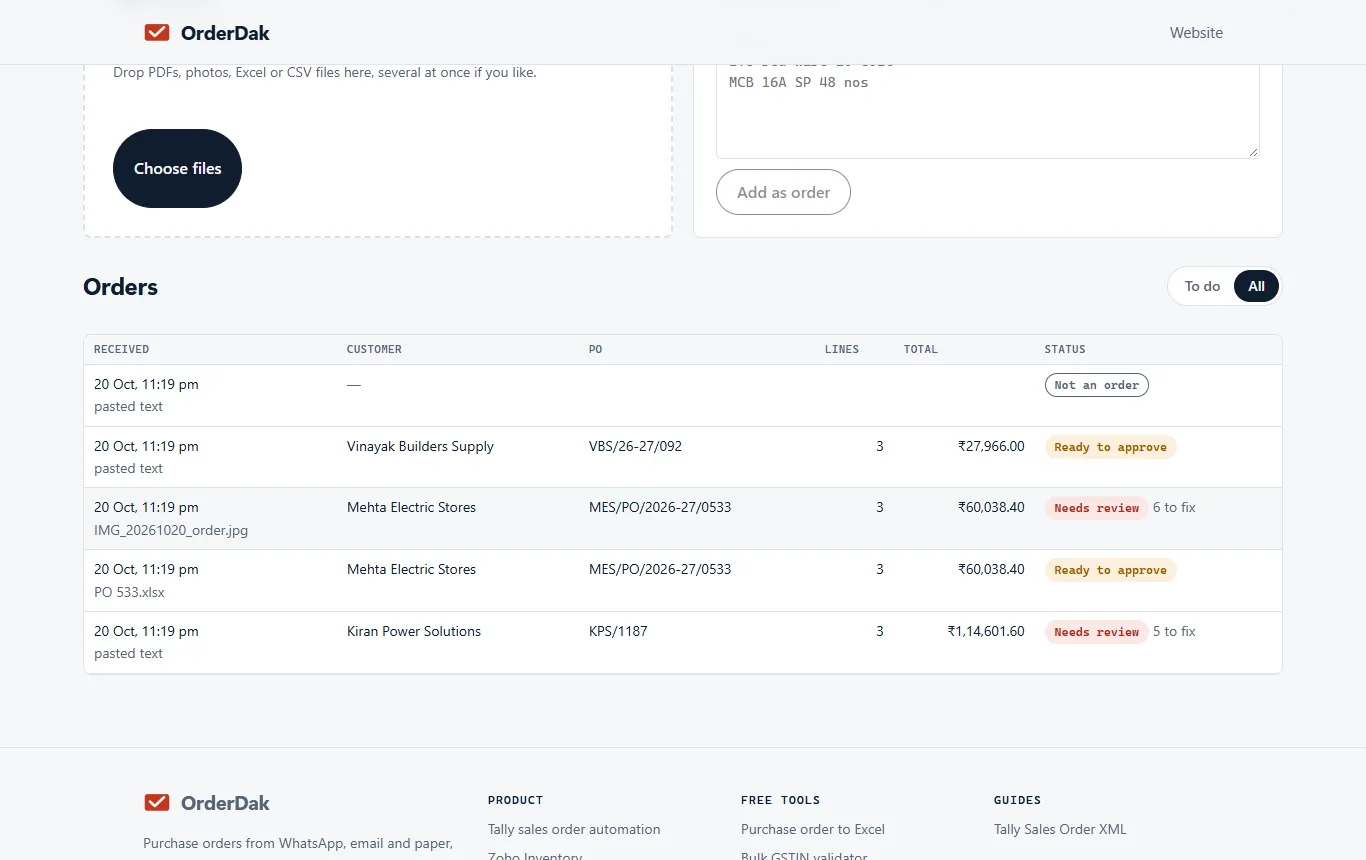
Check and approve
Confirm the buyer and any flagged lines, then click “Approve for Tally”.
Import in TallyPrime
Turn on order processing (F11). Open the company, go to Import, then Transactions, and choose the XML file. Every party, item, unit and ledger must already exist in Tally with the same name.
When OrderDak is not the right tool
If you only ever import sheets you made yourself in a fixed layout, Tally's own Excel import or the free converter may be all you need. If you need to import masters (new items or ledgers) into Tally, OrderDak does not do that; it creates Sales Orders only.
Questions
Is my file uploaded by the free tool?
No. The free Excel to Tally XML tool reads the sheet and builds the XML in your browser.
Can OrderDak read a sheet with many orders?
Each uploaded file is read as an order. For several orders, the free converter groups rows by Order No.
Why does Tally reject the file?
Usually a name differs from Tally's, or order processing is off. See the Tally Sales Order XML guide for common errors.
Related: How to import a PDF purchase order into Tally as a sales order · How to import sales orders into Busy from Excel · OrderDak vs Nanonets · Pricing
Last updated 1 November 2026 · by Venu Gopal Reddy Muvva, founder