How to stop retyping WhatsApp orders into Tally
Paste the WhatsApp chat into OrderDak instead of typing it. OrderDak reads the lines, matches them to your Tally stock items, checks rate, stock and credit, and gives you a Tally Sales Order to import or post through the bridge. You only fix the lines it flags.
Retyping a WhatsApp order means reading the chat, finding each item in Tally, typing the quantity, checking the rate, and doing it again for the next chat. The typing is not the hard part. The hard part is working out what “red 1.5 20” means for this customer, every time.
OrderDak does the reading and remembers each customer's words for your items. The first few orders from a customer take a few clicks in review. After that, most lines match on their own.
This guide shows the steps from a WhatsApp message to a Sales Order in TallyPrime. You don't need a WhatsApp Business account; a direct number connection is not available yet, so you copy or forward the chat.
Before an order can be approved, OrderDak checks each line's rate against your price list or the customer's own rate, the quantity against stock and pack size, the customer's credit limit, and whether the same PO number came before. It also checks that every quantity it read really appears in the message, so a misread number is caught.
Steps in OrderDak
Prepare Tally once
In TallyPrime press F11 and turn on order processing, so the Sales Order voucher type exists. Use TallyPrime 3.0 or later.
Load your items and customers
Export Stock Items and Sundry Debtors from Tally as CSV and upload them in OrderDak setup. Or choose “Try with an example” to start with sample data.
Copy the WhatsApp order
In WhatsApp, long-press the order message, copy it, and paste it under “Or paste a message” in OrderDak. Click “Add as order”.
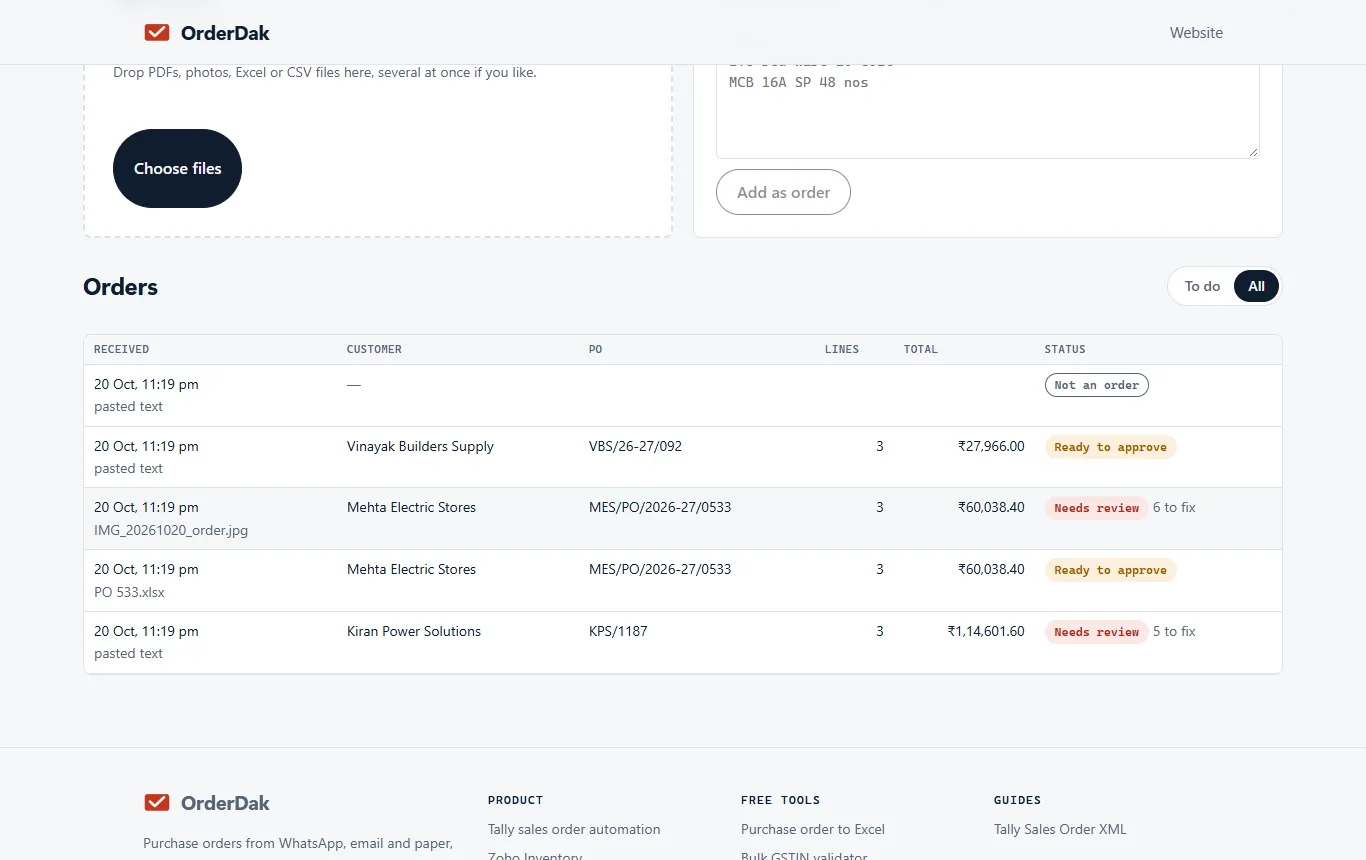
Check what OrderDak flags
Choose the customer if asked. For each flagged line, pick the right stock item and click “Confirm match”. It is remembered for that customer.
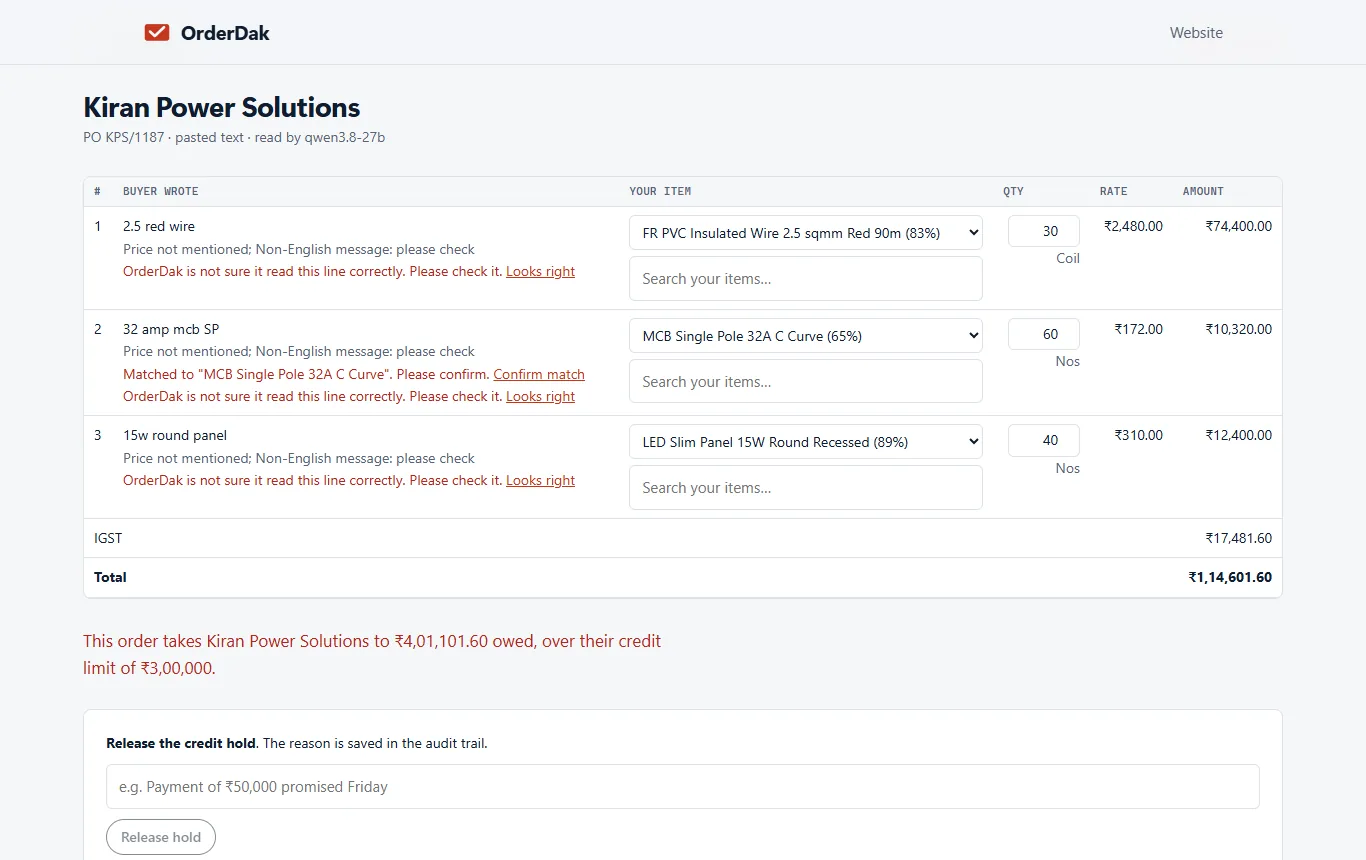
Approve for Tally
Click “Approve for Tally”. Orders held for credit limit need a reason to release.
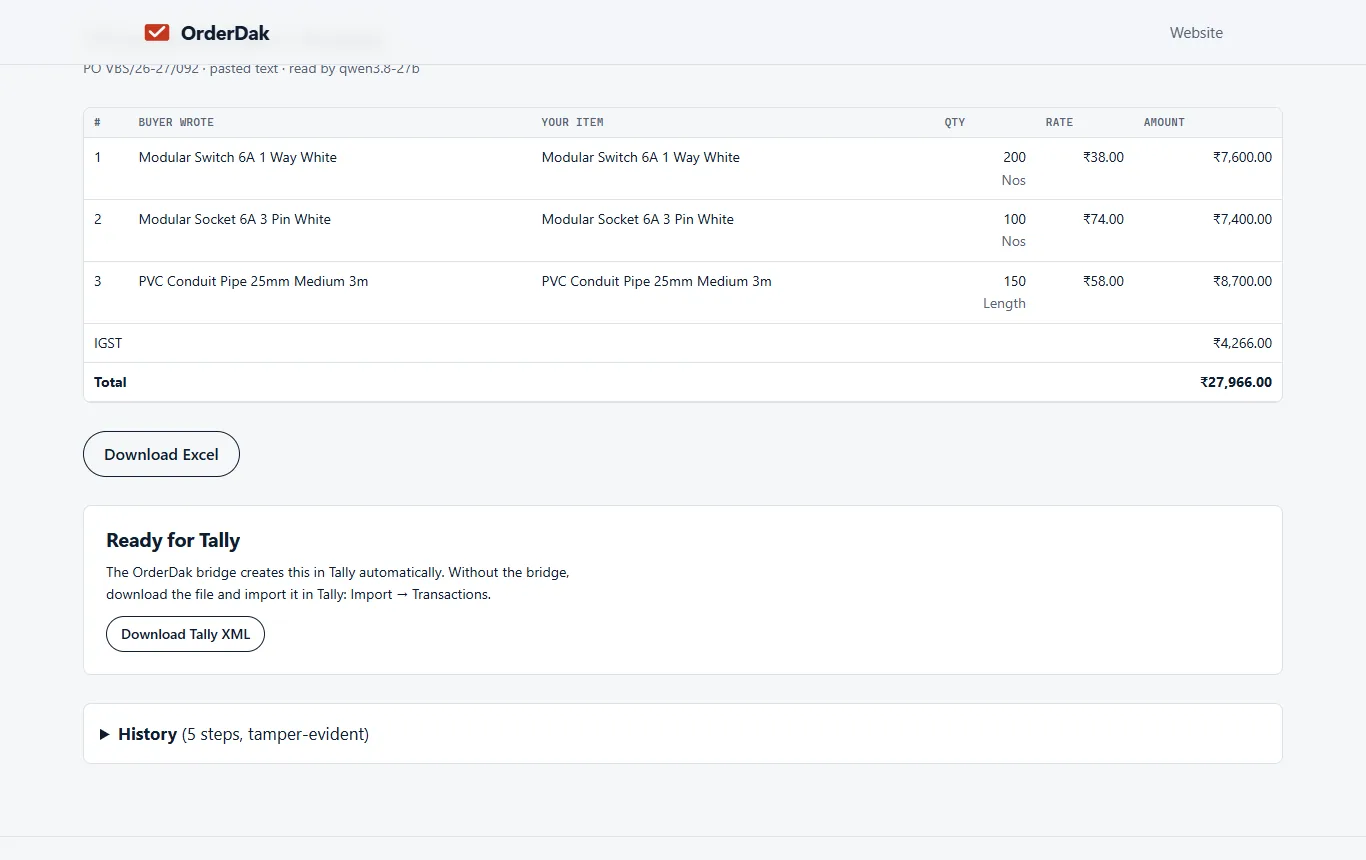
Import into TallyPrime
Click “Download Tally XML”. In TallyPrime, open the company, go to Import, then Transactions, and choose the file. Or set up the bridge (beta) so it creates the Sales Order for you.
When OrderDak is not the right tool
If your buyers send voice notes or handwritten slips on WhatsApp, OrderDak can't read those yet. If you want buyers to get stock and rate answers on WhatsApp, that is planned, not built. If you only want a table from one chat, the free WhatsApp order to Excel tool on our site may be all you need.
Questions
Do I need WhatsApp Business?
No. You copy or forward the chat. A direct WhatsApp Business number connection is planned.
Can I paste a whole day's chat?
Paste one order at a time for the best result. Pasted text is limited to 50,000 characters.
What if the message is in Hindi?
Orders that are not in English always go to review, so a person checks every line.
Is there a free tool?
Yes. WhatsApp order to Excel turns a pasted chat into a table in your browser, with no sign-up.
Related: Order management for FMCG distributors on Tally · How to import a PDF purchase order into Tally as a sales order · OrderDak vs Zotok.ai · Pricing
Last updated 1 November 2026 · by Venu Gopal Reddy Muvva, founder